For Microsoft Flight Simulator 2024

“Oops, I forgot to hit record.” Never again.

FSim Replay records every flight by itself, as soon as it loads. Land first, decide later: replay it from seven cameras, debrief every approach and landing, and turn the best moments into a vertical reel, all from a panel in the simulator’s toolbar.

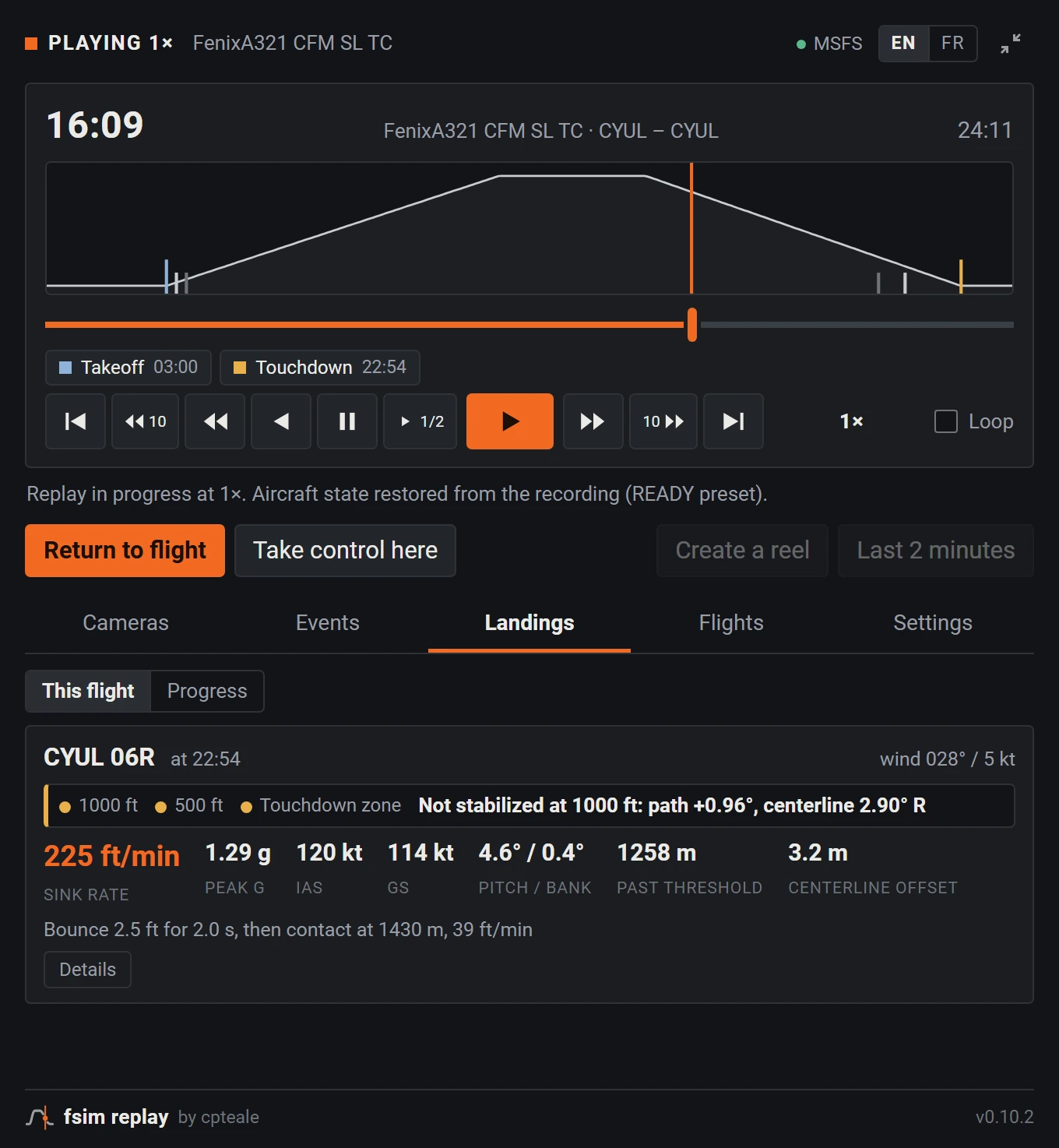
The FSim Replay panel replaying a flight: altitude profile with takeoff, gear and touchdown markers, transport controls, and the landing card for runway 06R at Montréal, not stabilized at 1,000 ft, 225 ft/min at touchdown.
The FSim Replay panel, opened from the MSFS 2024 toolbar during a replay.

Never miss a landing

Perfect landing. Nothing recorded. That’s over.

Every simmer knows the feeling: you grease it on, reach for the replay, and remember you never pressed Record. With FSim Replay there is no Record button to forget.

  • Always on. Recording starts by itself as soon as your flight is loaded, and carries on through pauses.
  • The whole flight. Not the last few seconds: gate to gate, there whenever you decide that landing was worth another look.
  • Nothing to save. Your flight is written to disk as you fly and joins your library on its own.
Recording0 buttons pressed
1 2 3
  1. Flight loadedRecording starts by itself
  2. TouchdownAlready in the recording
  3. At the gateReplay, debrief, reel

Why FSim Replay

The small tragedies of simming, solved.

We read the forums, sympathized in silence, then fixed everything we could.

The best landing of your career. No witnesses.
Recording no longer depends on your memory. Every flight records itself as soon as it loads.
Instant replay has the memory of a goldfish.
We keep the whole flight. “Last 2 minutes” is one click or a shortcut away, even mid-flight, and the full flight stays in your library.
Your A320 lands gear up. In the replay, at least.
Every aircraft is covered. Each one records and replays. On the Fenix A319, A320 and A321, our profiles also bring back gear, flaps, engines and lights, and the Cessna 172SP G1000 has its own profile too. For yours, “Check this aircraft” replays your last 30 seconds and tells you what to expect.
The autopilot flew the leg. The replay didn’t get the memo.
It doesn’t matter who had the controls. FSim Replay records what the aircraft did, 20 times per second, not what your hands did.
Three hours of cruise to get through for thirty seconds of final.
Straight to the good part. The replay opens on the flight, Takeoff and Touchdown are one click away, and “Replay touchdown” shows the landing from the tower.
The sim crashed. Your recording went with it.
Your flight no longer goes down with the sim. FSim Replay runs on its own and writes to disk continuously: no save step to forget, and a crash doesn’t take your flight with it.
You wanted another look at your flare. You lost your flight.
The way back is built in. A snapshot taken before the replay puts your aircraft back where it was. FMS, fuel and weather are not restored, so a quick look around the cockpit is in order.
Record everything? Your disk never agreed to this.
It won’t notice. About 25 MB per flight hour, measured on real Fenix flights, with a 5 GB cap by default. Past it, the oldest flights go first and favorites stay.
We don’t do miracles. Only your aircraft is recorded, so traffic and weather are not part of the replay, and some aircraft get visual playback only. Read the current limitations.

How it works

Fly as usual. FSim Replay takes it from there.

TAKEOFF CRUISE TOUCHDOWN
  1. Fly as usual

    FSim Replay starts with the simulator and records your flight 20 times per second. Nothing to arm, nothing to remember.

  2. Land

    Touchdowns, bounces and the rollout are detected. Your approach debrief is ready by the time you vacate the runway.

  3. Replay at the gate

    Open FSim Replay from the toolbar to replay, review and share. Then pick up your flight right where you left it.

Replay

Your whole flight on a timeline, right in the toolbar.

Load the flight you just landed or any flight from your library. Takeoff, gear, flaps and touchdown are marked on the altitude profile, so you can jump straight to the moment that matters, then watch it again in slow motion.

Seven cameras

Cockpit, external, orbit, tower, flyby, cinematic and free camera, switched from the panel at any point of the replay. With ChasePlane, cockpit and external go through FSim Replay’s own cameras, and the cockpit view turns from the panel or the numeric keypad.

From slow motion to 8×

Slow motion at 1/2, 1/4 and 1/8, fast-forward or rewind at 2×, 4× and 8×, play backwards, jump 10 seconds either way, or loop a passage.

Last 2 minutes

One click, or Ctrl + Alt + Home, replays the last two minutes of the flight in progress. Other shortcuts play, skip 10 s and return to flight.

Take control here

Stop the replay at any moment and fly on from there: retry an approach, practice a crosswind landing.

Return to flight

A snapshot taken before the replay puts your aircraft back where it was, so a replay never costs you your flight.

At the flight’s time of day

The simulator clock follows the replay, so a landing at dusk replays at dusk. Your own time comes back when you return to your flight.

Opens on the flight

A session parked for hours and flown for minutes opens on the flight, three minutes either side. Flight or All, the mouse wheel to zoom, and Takeoff and Touchdown a click away, starting 30 s early.

While still recording

Open the flight you are flying right now: its takeoff, touchdown and approach debrief are already there, before the flight is even closed.

Check this aircraft

Replays your last 30 seconds with the aircraft loaded and tells you what to expect: full replay, visual playback only, or the states it refuses.

Approach & landing debrief

Know exactly why that landing felt off.

FSim Replay rebuilds each approach against a geometric 3° path and checks it at 1,000 and 500 ft with classic stabilized-approach criteria. Every verdict comes with its reasons.

Approach
Path and centerline deviation, sink rate, speed against your Vref, gear and flaps at each gate.
Touchdown
Sink rate, peak G, threshold crossing height, float, distance past the threshold, touchdown zone, drift and crosswind, bounces.
Rollout
Distance to 60 kt, runway remaining, peak deceleration, reversers and spoilers.
Replay it
“Replay approach” starts from the 1,000 ft gate, “Replay touchdown” shows the landing from the tower.
Retry it
“Retry approach” puts you 45 s before the highest gate you crossed and hands you the controls; each attempt is debriefed and drawn under the original.
Progress
Stabilized approaches, touchdowns in the zone, median sink rate and personal bests across your latest landings, per aircraft.
Real flight
Import a Flightradar24 CSV, FlightAware KML or GPX track: the real final approach is drawn under yours, with its height at each gate.

No guesswork. When a value can’t be measured reliably, or a limit isn’t documented for your aircraft, the criterion is shown as “not assessed” instead of being invented.

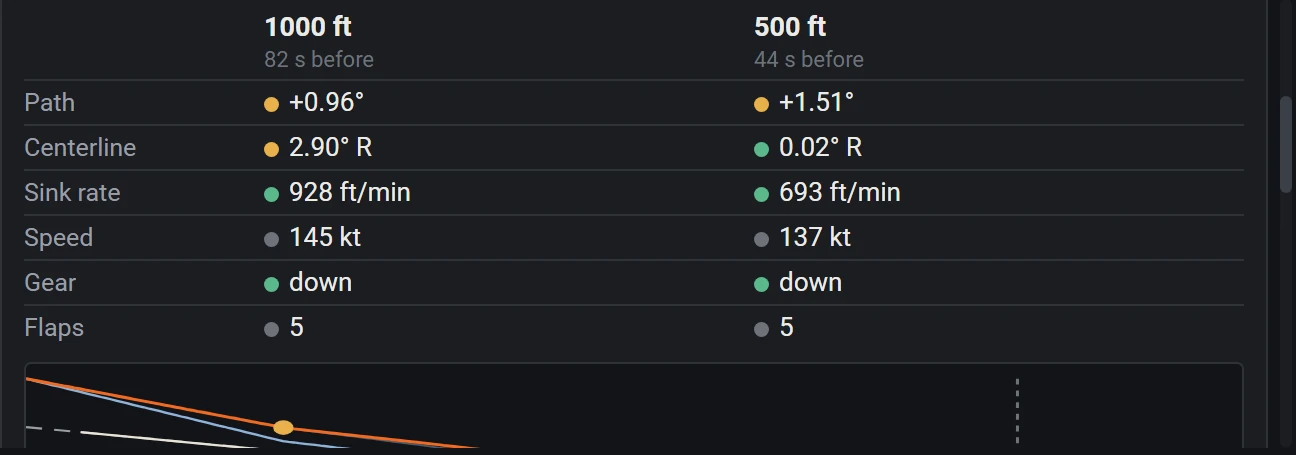
Approach gates at 1,000 and 500 ft with path, centerline, sink rate, speed, gear and flaps, above the vertical profile against the 3° path.
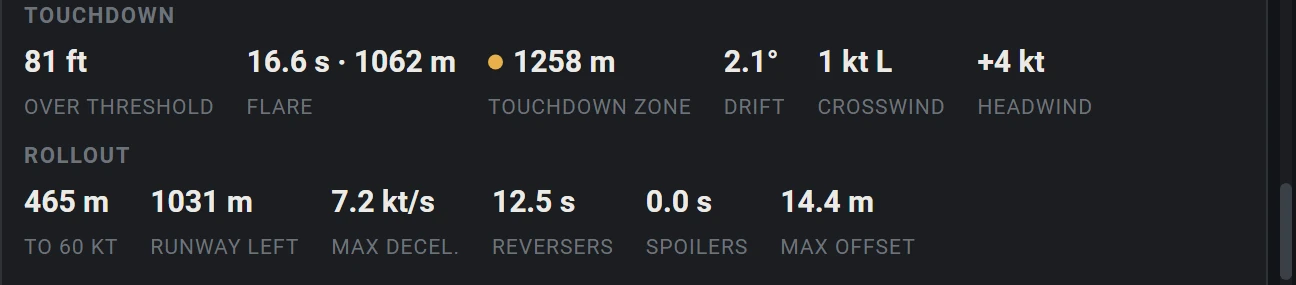
Touchdown and rollout figures: 81 ft over the threshold, 1,062 m flare, touchdown 1,258 m past the threshold, 465 m to 60 kt, 1,031 m of runway left.
  • Within criteria
  • Outside criteria
  • Not assessed

A real reel: Fenix A320, Paris CDG to London Heathrow, French captions.

Reels

Your flight, cut into a 45-second reel.

One click once you’re parked. FSim Replay films the key moments of your flight with its own cameras and edits a vertical video, ready for TikTok, Instagram Reels and YouTube Shorts.

  • Shots chosen from your flight. Takeoff roll, rotation, climb, cruise, final, slow-motion touchdown, rollout, and an end card with your numbers.
  • Cut to your music. Edits land on the beat of your own royalty-free tracks, with the volume leveled.
  • Your name on it. Animated captions in English or French, with your handle.
  • Ready to post. 1080 × 1920 at 60 fps, saved to your Videos\FSim Replay folder.

Reels need the free FFmpeg, installed in one line with winget install Gyan.FFmpeg. Your NVIDIA, AMD or Intel video encoder is used when available.

Library

Your flights file themselves.

Recording starts on its own and carries on through pauses. Each flight joins your library with its route, aircraft and duration, ready to replay weeks later.

  • Favorites, names and notes to find the flights that matter.
  • Storage under control. A 5 GB cap by default, about 200 flight hours, adjustable in the settings. Past it, the oldest flights are erased; favorites and the flight in progress are kept.
  • Every flight on a globe. Pick a flight to see it alone, then watch the aircraft follow its track during the replay. Drag to turn the globe, wheel to zoom, click a route to load it.
  • Share without a cloud. A 1200 × 675 picture of a landing, or the whole flight in one .fsimreplay file that a friend imports.
  • Export anywhere. CSV for spreadsheets, GPX and KML for Google Earth and mapping tools.
CSVGPXKML

The flight map, drawn by the app itself with demonstration flights; the panel’s Flights tab shows the same globe.

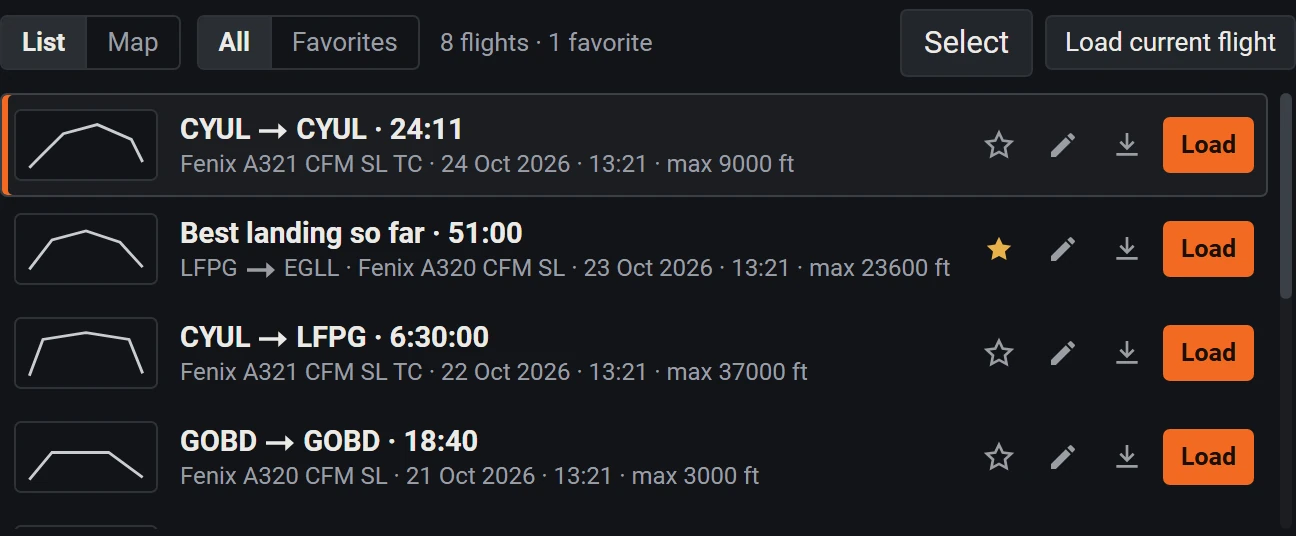
The flight library: flights listed with route, duration, aircraft and maximum altitude, with favorite, rename, export and load buttons.

Built to be trusted

Your sim, your flights, your PC.

FSim Replay is a small, careful Windows app. It does its job and stays out of the way of everything else you run.

Your flights stay on your PC

No analytics, no tracking. Your flights are kept on your disk, and the panel only accepts connections from your own computer.

No admin rights

Installs to your Windows user profile. No elevation prompt, no system-wide changes.

Respects your setup

Finds your Community folder (Microsoft Store or Steam), backs up exe.xml and keeps your other add-ons in place.

Clean uninstall

Listed in Windows Apps like any other program. Your flights are kept unless you choose to remove them.

Verifiable download

Every installer is published with its SHA-256 fingerprint, so you can check exactly what you run.

Honest about limits

What isn’t validated yet is written down, not hidden. Read the current limitations.

Compatibility

What you need.

A Windows PC that runs Microsoft Flight Simulator 2024 already has everything FSim Replay needs.

Simulator
Microsoft Flight Simulator 2024, Microsoft Store or Steam edition.Microsoft Flight Simulator 2020 is not supported.
System
Windows 10 or 11, 64-bit..NET Framework 4.8, included with Windows.
Aircraft
Every Microsoft Flight Simulator 2024 aircraft can be recorded and replayed.
Reels
Free FFmpeg.Hardware encoding on NVIDIA, AMD and Intel graphics, software encoding otherwise.
Languages
English and French, for the panel, the Windows app and the installer.

FAQ

Questions pilots ask.

Do I need to start a recording?

No. FSim Replay starts with the simulator and records every flight 20 times per second, as soon as it loads. Pausing the simulator doesn’t split your flight. The one condition is that FSim Replay is running, which is what the installer’s automatic start option does. It is on by default.

How much does FSim Replay cost?

US$14.99, paid once, with no subscription. Tax may be added at checkout, depending on your country. You can try it free for 7 days first, with no card and no account. Your flights stay on your PC either way.

Which aircraft work with FSim Replay?

All of them can be recorded and replayed. Study-level aircraft manage their own systems, so FSim Replay uses aircraft profiles to restore gear, flaps, engines and systems during a replay and to supply gear and flap speed limits. Profiles are available for every Fenix A319, A320 and A321, CFM and IAE (checked in flight on the A320 and A321 CFM), and the Cessna 172SP G1000. With any other aircraft, “Check this aircraft” replays your last 30 seconds and tells you what to expect.

What happens when I return to my flight?

FSim Replay puts your aircraft back to the snapshot taken just before the replay started, and sets the clock to the time it would be now. FMS, fuel, weather and traffic are not restored, so give your aircraft a quick check before you continue.

Where are my flights stored?

In FSim Replay’s folder in your Windows user profile; reels are saved to Videos\FSim Replay. Uninstalling keeps your flights unless you choose to remove them.

Can I use FSim Replay in VR?

It hasn’t been tested on a headset yet. Recording and replay don’t depend on the view, but the panel’s readability in VR is still unverified.

What are the current limitations?

FSim Replay is in beta. Here is what is known and not yet solved:

  • Only your own aircraft is recorded: traffic and weather are not part of the replay.
  • FMS, fuel, weather and traffic are not restored by “Return to flight” or “Take control here”.
  • Full restoration of Fenix systems, and resuming an approach from 5 NM, are not validated yet.
  • With ChasePlane, the replay’s cockpit view doesn’t follow the mouse: it turns in steps, from the panel or the numeric keypad.
  • Starting a replay at the gate can make GSX consider your flight departed.
  • On aircraft without a profile, gear and flap overspeeds are shown as not assessed.
  • Hard landings and landing flap settings are shown as not assessed on every aircraft: their limits aren’t in the profiles yet.
  • In slow motion, animations the aircraft runs itself, such as the landing gear, keep their real speed.
Is FSim Replay affiliated with Microsoft?

No. FSim Replay is an independent product made for Microsoft Flight Simulator 2024. It is not affiliated with or endorsed by Microsoft or by aircraft developers.

Download

Holding short, awaiting clearance.

FSim Replay is finishing its last checks before departure. The download opens here as soon as it’s cleared.

FSim Replay for Windows Version 0.10.3 · Beta
Coming soon
Free trial
7 days, no card
Price
US$14.99
Payment
Once, no subscription
  1. Run the installerChoose English or French, then your options. No admin rights needed.
  2. Start MSFS 2024FSim Replay starts with the simulator and waits by the clock in the taskbar.
  3. Open the panelAfter your flight, click FSim Replay in the simulator’s toolbar.